Setting Up Cost Export
Scheduling Cost export to storage account
-
Login to your 'Azure Portal'.
-
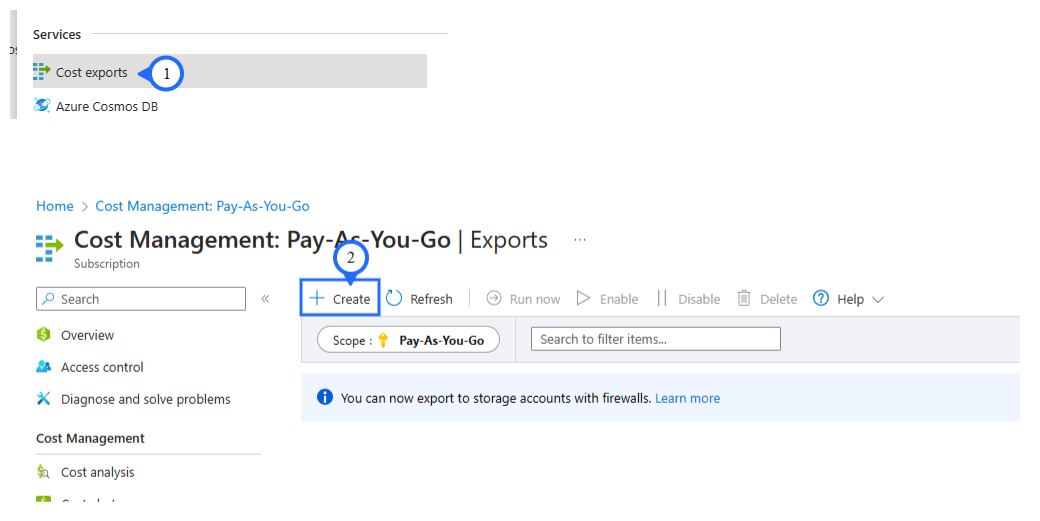
Step 1: Search for “Cost Exports” in Azure Portal.
-
Step 2: Click on “+ Create” for create a new export.
Section Export Details
-
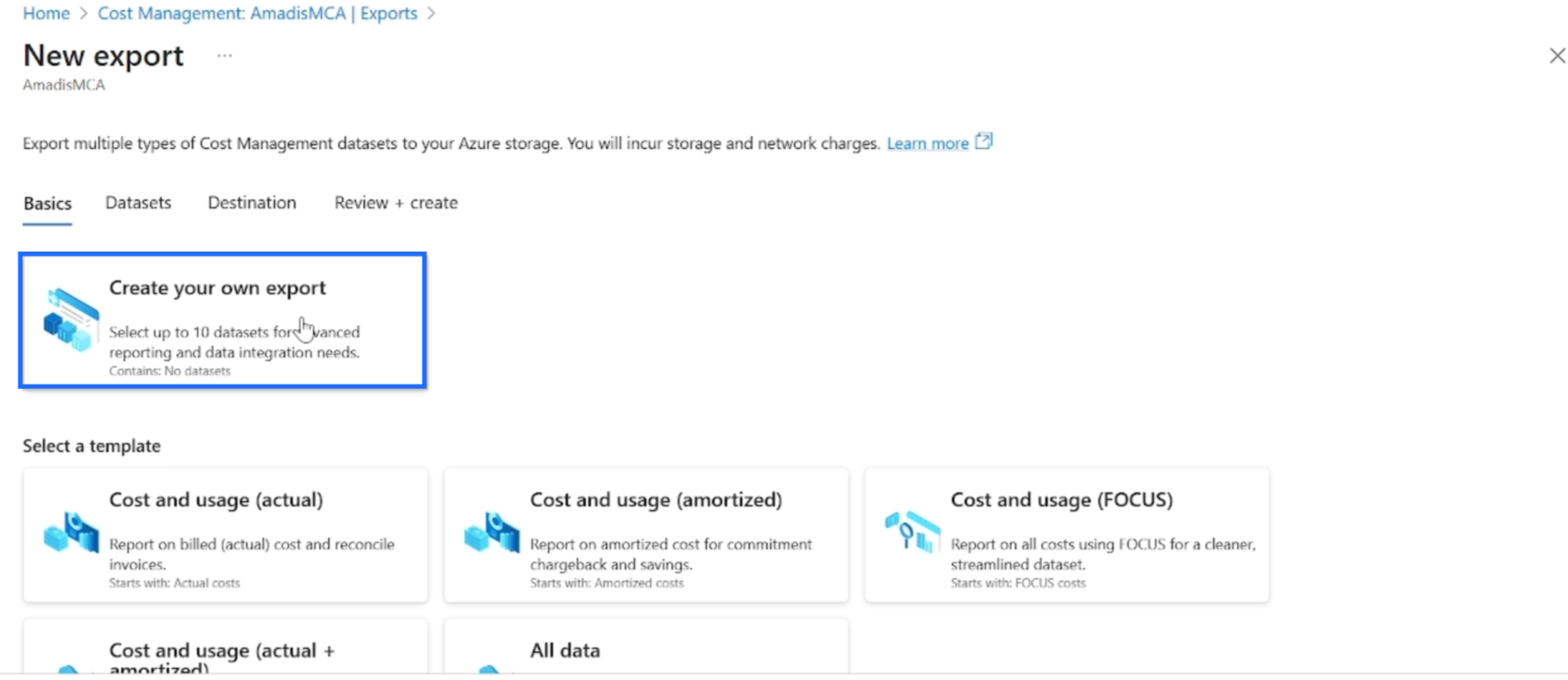
Step 1: Click On : "Create your on own export".
-
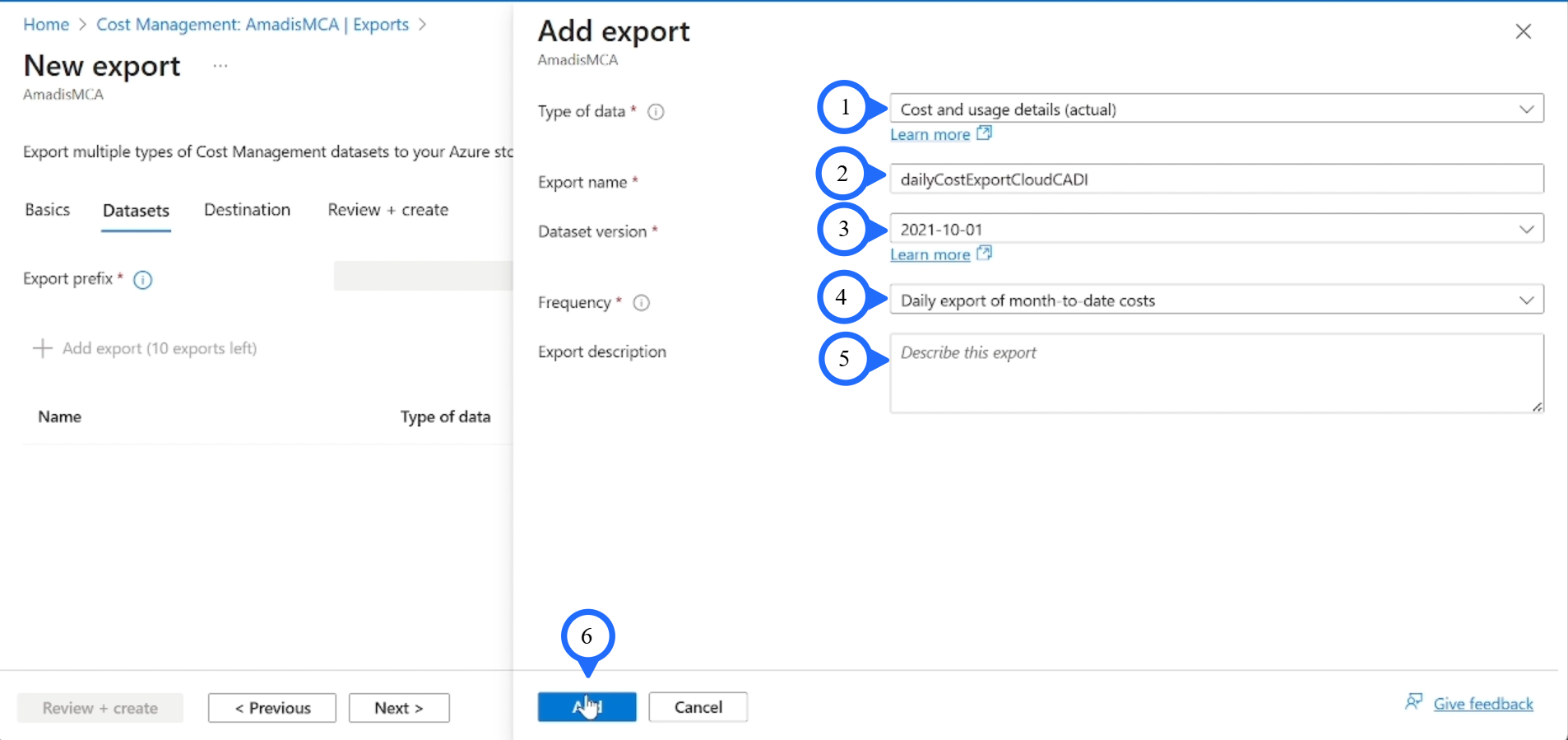
Step 1: Type of Data: "Cost and usage details (Actual)".
-
Step 2: Export Name : "DailyCostExportCloudCADI".
-
Step 3: Dataset Version : "2021-10-01".
-
Step 4: Frequency: "Daily export of month-to-date costs".
-
Step 5: Click On: "Next".
-
Step 6: Description : " Fill the Description ".
-
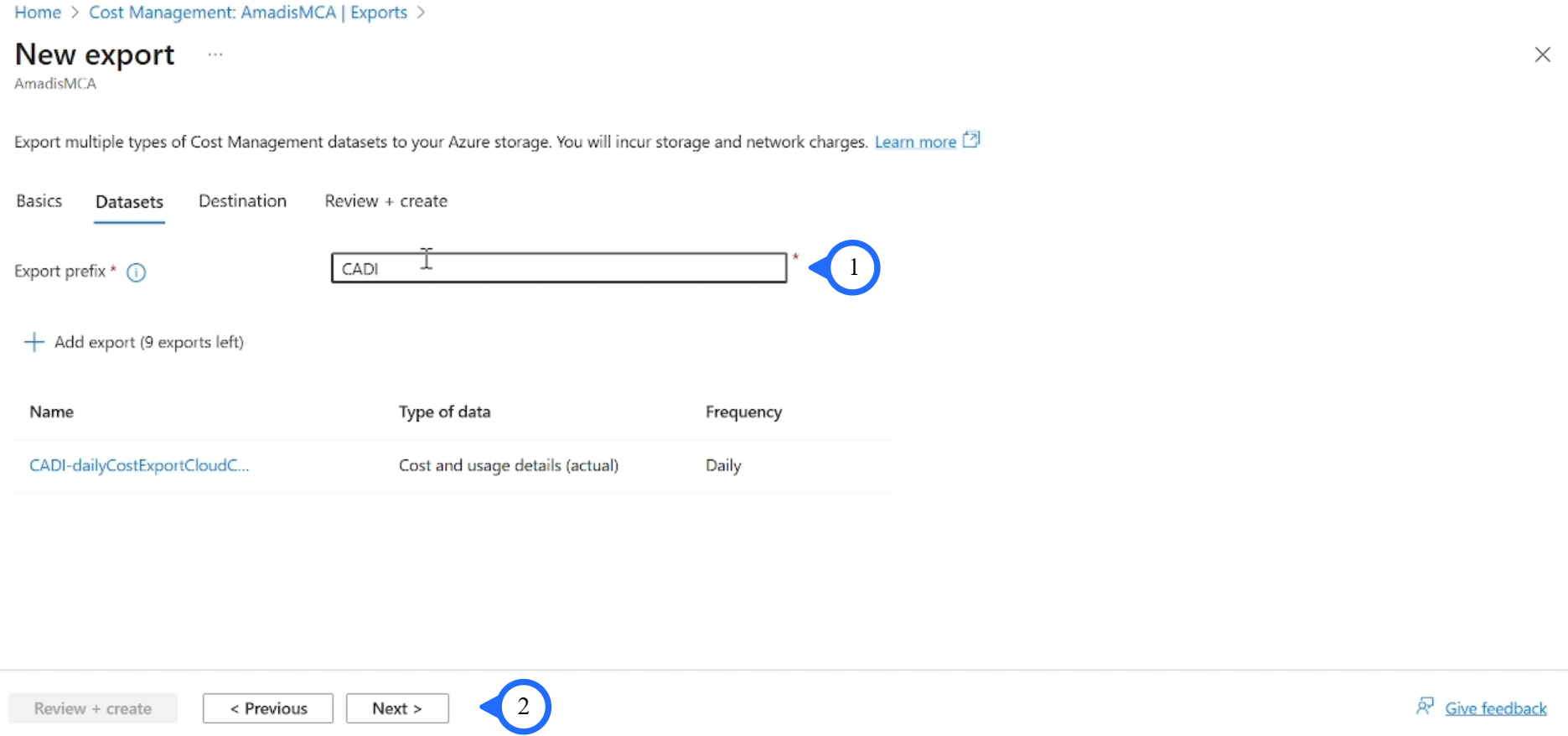
Step 1: Export Prefix : "CADI".
-
Step 2: Click On: "Next".
Section Storage
-
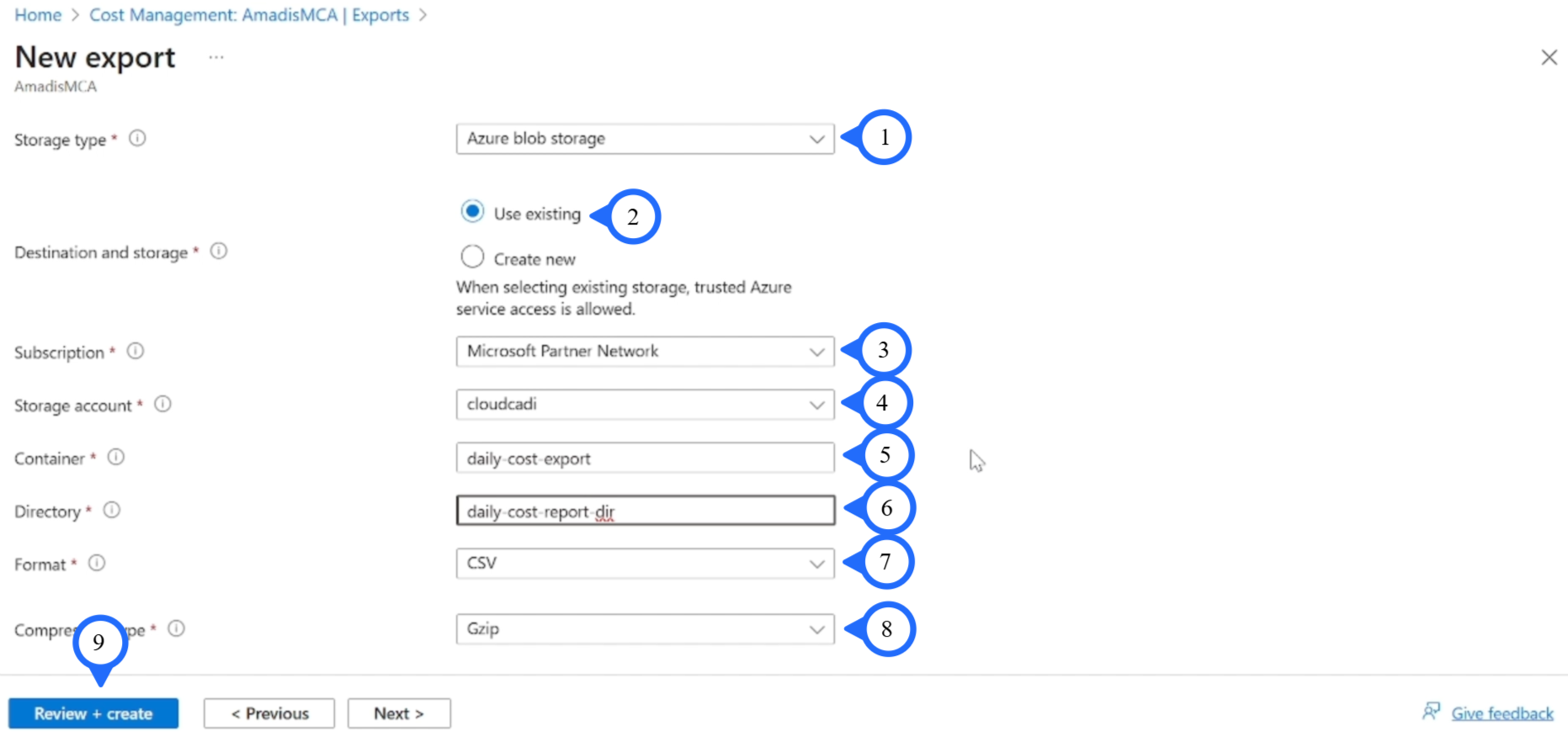
Step 1: Storage Type: "Azure Blob Storage".
-
Step 2: Destination: "Use Existing".
-
Step 3: Subscription: "Microsoft Partner Network".
-
Step 4: Storage Account: "cloudcadi".
-
Step 5: Container: "daily-cost-export".
-
Step 6: Directory: "daily-cost-report-dir".
-
Step 7: Format: "CSV".
-
Step 8: Compression: "GZip".
-
Step 9: Click on "Review + Create".
- Step 1: Click on "Create".
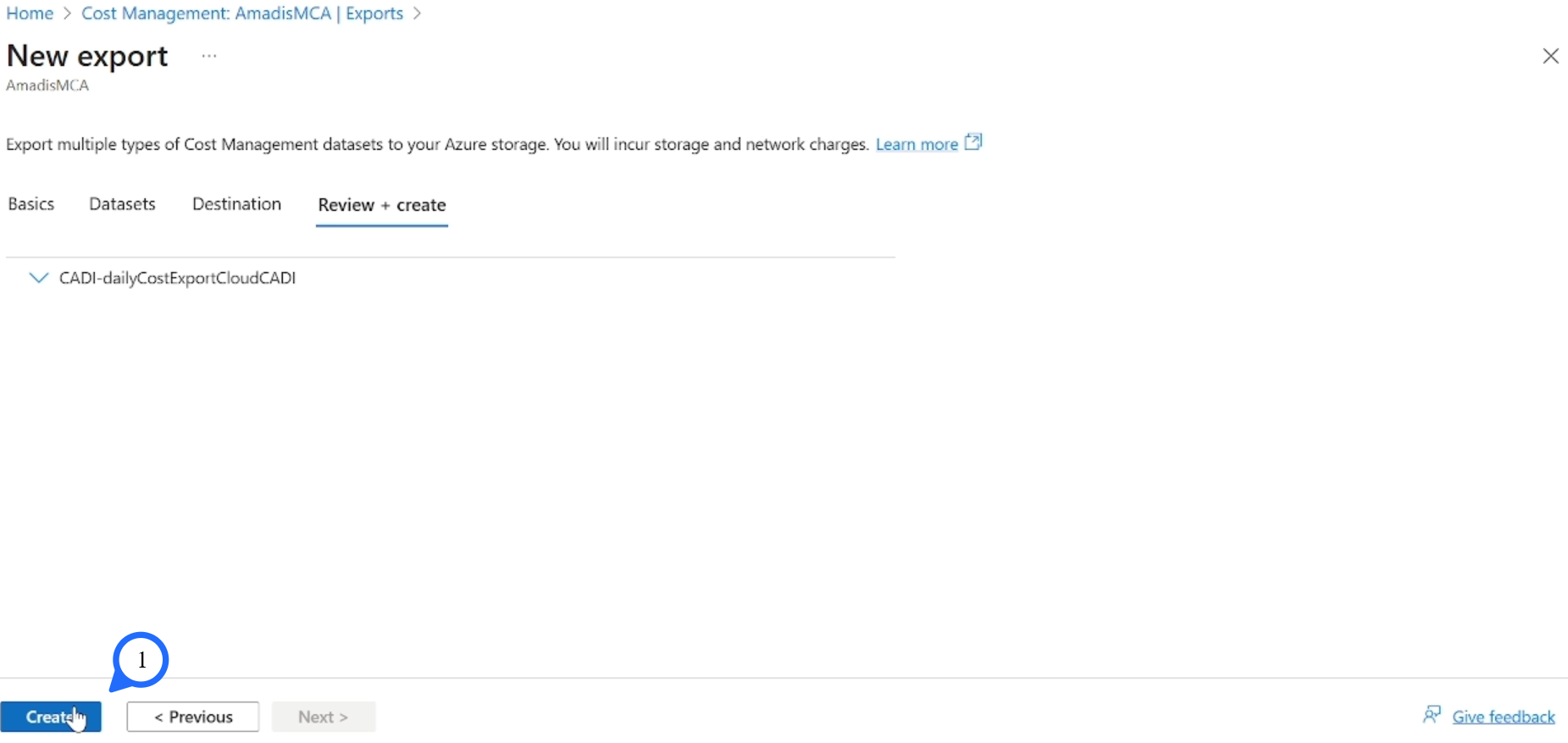
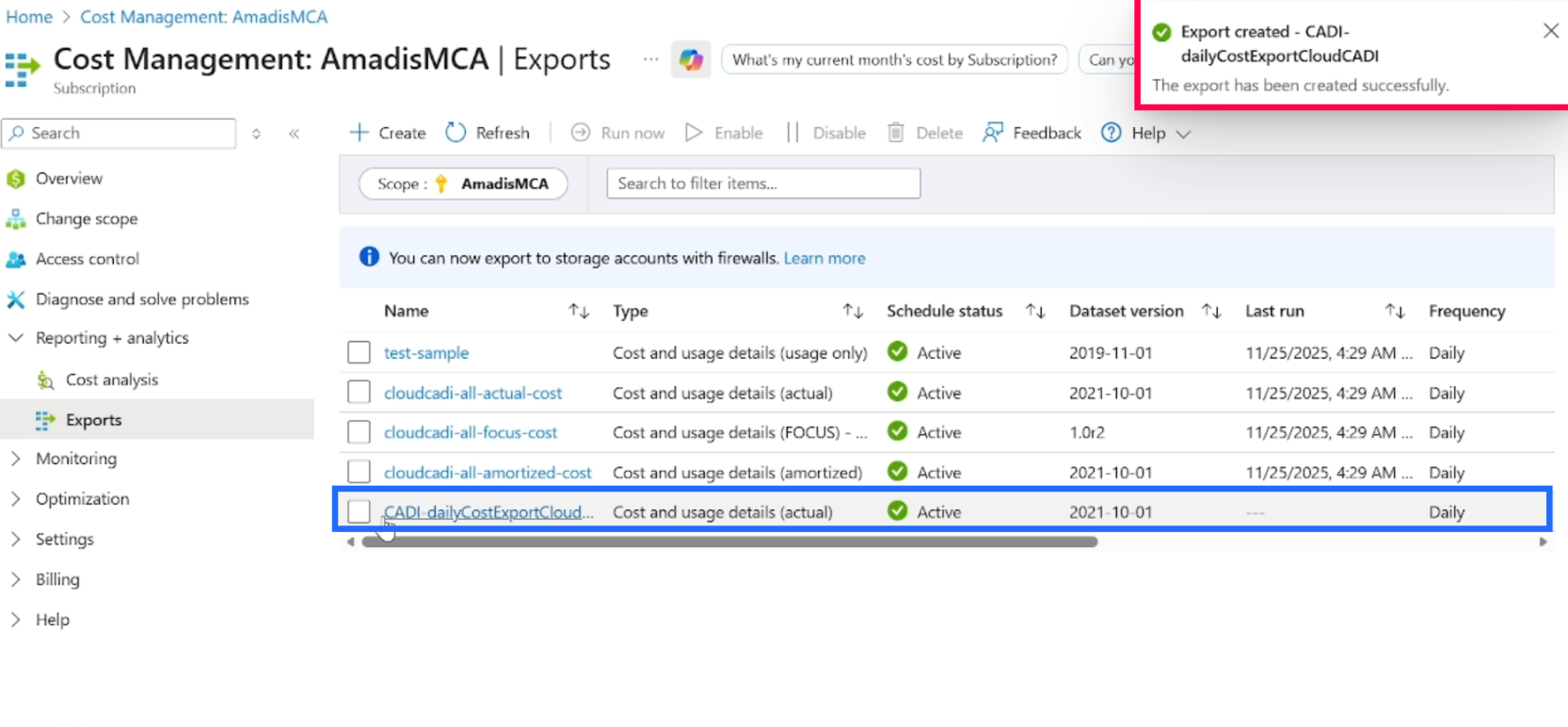
After Successfully Creation. It will be listed as below